GuestPoint Channel Manager - Premium
Quick Answer: This article covers mapping instructions for clients using our Premium version of the GuestPoint Channel Manager.
Benefits of our Premium Channel Manager vs Standard
The main benefits of Premium over Standard are the following for clients using GuestPoint in Australia:
- Qantas Connection: Standard does not have a Qantas connection.
- Occupancy-Based Pricing Model: Premium does this far better than Standard.
- Different Multipliers/Mark Ups for different rate plans/room types: With Standard you can only apply one singular multiplier or markup to a channel for all room types & rate plans. Premium you can control what each room type & rate plan's multipliers or markups are.
- Far more OTA channels than Standard but mostly irrelevant as these apply more internationally than in Australia.
How to Manage Mapping with GuestPoint Channel Manager Premium
With our own channel managers, you can manage your mapping to Online Travel Agencies (OTAs) channels like Booking.com & Expedia straight from the GuestPoint software itself.
This article deals primarily with editing current mapping or channel multipliers/mark ups for the Premium channel manager.
For more instructions on how to map a new room type or how to map to a new OTA channel with Premium, please contact GuestPoint Support instead.
Navigate to Management > Channel Manager Tab > Channel Manager Mapping
From here you will see what channel managers your GuestPoint is currently connected to.

There could be a variety of integrations that show such as channel managers like GuestPoint Premium, GuestPoint Standard, SiteMinder, our own GuestPoint Booking Engine, the RoomPriceGenie revenue maximising integration, or GDS platforms we connect directly to like RecOnline or 7Point Hotel Distribution.
Locate your GuestPoint Premium connection and you should see two clickable icons on the right-hand side.
Click into the left button Map to OTA Channels to start managing your mapping to OTAs through the Premium channel manager.

Once you click this button it will often load for up to 30 seconds on a white screen. This is intentional and there are no issues, please let it load fully.
Once the screen has loaded, select the OTA you wish to edit. Connected channels are at the top and a list of unconnected channels are at the bottom.
See below image for the available options for the Booking.com channel for example.
See below image for the available options for the Booking.com channel for example.
Applying a channel multiplier e.g. 15% markup to Booking.com
This option allows you to easily configure a markup on your GuestPoint prices when they are sent to any OTA.
Proceed to the Edit button after clicking into an OTA channel
You will see below property interface settings. Change the 'Default Multiplier' setting to your desired multiplier.
Proceed to the Edit button after clicking into an OTA channel
You will see below property interface settings. Change the 'Default Multiplier' setting to your desired multiplier.
For example, a multiplier of 15% is equivalent to 1.15. Below example is a mark up of 7.5% equivalent to 1.075.
These multipliers act on the rates you are sending to the channel manager from GuestPoint.
If you wish for a flat amount, use the Surcharge option instead.
These multipliers act on the rates you are sending to the channel manager from GuestPoint.
If you wish for a flat amount, use the Surcharge option instead.
Proceed to save this by clicking 'Next' in bottom right corner, go back to the OTA channel page and click on the Sync button to push through your new multipliers to the channel.
If the Sync button is greyed out (it has a lockout timer of 1 hour), you can click the Sync button next to each rate plans instead.
Applying a different channel multiplier for different room types or rate plans
You can also edit multipliers on an individual room type or rate plan level with Premium which is one of the advantages it has over Standard.
For example, you may mark up Booking.com for 15% but perhaps you want a 17.5% multiplier for one of your room types or rate plans.
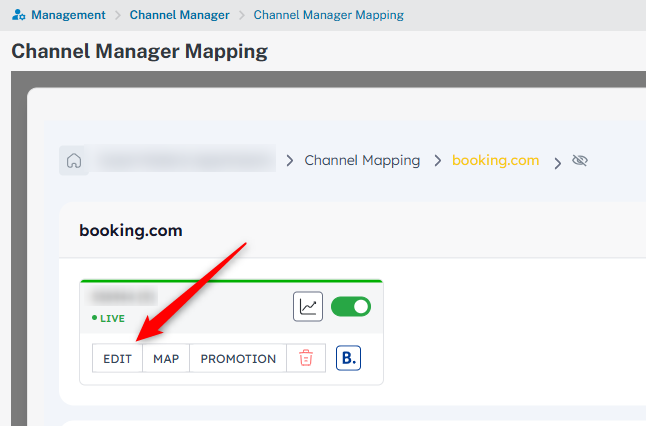
Proceed to the 'Edit' functionality on any current mappings
Proceed to the 'Edit' functionality on any current mappings
You will see below mapping interface. By default it will use the default multiplier already inputted for this OTA channel.
Input a new multiplier value into the multiplier box i.e. 1.15 for 15%.
Save the mapping and then proceed to sync that rate plan to instantly push your new multiplier to the OTA.