SiteMinder - General Guide to GuestPoint & SiteMinder Integration

Quick Answer: For clients using the SiteMinder channel manager integrated to GuestPoint, mapping is still done through the SiteMinder platform. The mapping section you see on GuestPoint only relates to the room/inventory and rate codes we use to talk with SiteMinder.
General Introduction to SiteMinder Integration with GuestPoint
Firstly, GuestPoint clients are able to integrate to SiteMinder through two ways with us: directly or through GuestPoint Elite.
GuestPoint Elite is a Reseller partnership with SiteMinder where we handle the support for SiteMinder.
We can do requests like mapping to an OTA on your behalf, setting up a rate plan if you are unsure how to do it on SiteMinder, or connecting a rate plan between GuestPoint and SiteMinder.
We will not action anything on SiteMinder for SiteMinder Direct clients as SiteMinder provides the support instead.

If you are currently a SiteMinder Direct client wishing to swap to GuestPoint Elite, this may or may not be possible based on our reseller partnership agreement with SiteMinder.
For both options, we do not do anything on an OTA-level. We can perhaps give you advice but our role does not involve actioning anything on OTAs themselves.
Please have a look at table of contents for your relevant SiteMinder inquiry.
Channel Manager Mapping Section on GuestPoint
If you proceed to the Channel Manager Mapping section and are using SiteMinder, you will only see one "Map to Channel Manager" button.
This button brings up the current room/inventory & rate codes we are using to talk with SiteMinder.
You cannot change these codes on the front-end but feel free to let GuestPoint Support know if any codes need to be changed to match up with SiteMinder.
More information about room/inventory & rate codes is available further below in "Room, Inventory, and Rate Codes" section.
Ways of Integrating with SiteMinder - One-Way or Two-Way
There are a few options available in relation to a one-way or two-way connection between GuestPoint and SiteMinder. These types relate to what information is sent from GuestPoint to SiteMinder.

Please note that we are unable to receive updates in the opposite direction i.e. updates SiteMinder to GuestPoint.
Our connection options relate to what we send to SiteMinder from GuestPoint.
For all options, we will naturally import every reservation, modification, or cancellation received from SiteMinder as this is one of the main purposes of integrating a channel manager to GuestPoint.
If preferred, there is the option to disable automated modifications and cancellations as well in the Channel Manager Preferences section.
Option 1 - GuestPoint is the Master Platform
The most common option where GuestPoint completely controls all rates, restrictions, and inventory on SiteMinder.
Any rate/restriction/inventory updates on SiteMinder will eventually be overwritten by what GuestPoint sends to SiteMinder.
Option 2 - No Rates Sent
Another common option where clients prefer to control their nightly rates from SiteMinder. GuestPoint will not send any nightly rate updates to SiteMinder.
Option 3 - No Restrictions Sent
This option can combined with option 1 or 2. Rate plan restrictions like rate plan stop sells, minimum nights, close to arrivals, and close to departures, will all not be sent to SiteMinder.
Please do kindly note that this does not stop inventory-level restrictions like inventory reserves or inventory-level stop-sells.
Be very careful to not stop-sell on an inventory-level from GuestPoint if using this option.
Option 4 - No Inventory Sent
Almost no one uses this option as this does defeat one of the main purposes of a PMS integrated with a channel manager. This option stops sending inventory updates to SiteMinder.
Verifying what Connection Type is Enabled on GuestPoint End
Your current GuestPoint > SiteMinder connection type can be seen in Management > Channel Manager Tab > Channel Manager Mapping > Locate the SiteMinder channel and click on the one "Map to Channel Manager" button.
This will bring up the SiteMinder Mapping screen where you will also see your room/inventory & rate codes that we use to talk with SiteMinder.
You cannot change your Connection Type yourself on this screen, please contact GuestPoint Support via email for us to action a change on your behalf.
You should also ensure you change these connection type settings on SiteMinder end.
Ensuring your Connection Type on GuestPoint is also the same on SiteMinder
Please kindly note that if you are using any of above connection type options, the connection type you are using on GuestPoint end should also match what is in the GuestPoint Connection setting on SiteMinder itself.
This ensures your preferred connection type is fool-proof.
On SiteMinder platform, navigate to "Distribution" tab > Connectivities on left-hand side menu > Click into GuestPoint (New) > On the first Settings page you will see "Inventory settings"
From here you can see what SiteMinder is currently configured. If you have changed your connection type on GuestPoint, you should also click into the pencil "Edit" button to match those settings accordingly.
Mapping GuestPoint and SiteMinder Together - Room, Inventory, and Rate Codes
GuestPoint talks with SiteMinder through room/inventory and rate codes. These codes must be first inputted on SiteMinder and then inputted on GuestPoint to match.
This is how GuestPoint can control rates, restrictions and inventory, and at the same time this is how GuestPoint imports reservations from SiteMinder.
If these codes do not match on either platform, you may have issues with inventory or wrong rates, or reservations not being able to import automatically into GuestPoint.
Even if you are using a connection option like "No Rates" or "No Restrictions", these codes must still be inputted on both platforms for GuestPoint to actually import the reservation automatically.
Where to Find & Edit Codes on GuestPoint
Your room/inventory and rate codes can be seen in Management > Channel Manager Tab > Channel Manager Mapping > Locate the SiteMinder channel and click on the one "Map to Channel Manager" button.
This will bring up the current room/inventory (these are the same code) codes and rate codes for your online rate plans from GuestPoint.

If the codes are greyed out, you may not have sufficient user privileges to edit this. You can review these user privileges in Management > Setup > Users & Rights with an Administrator-level GuestPoint username.
The relevant user privileges are below
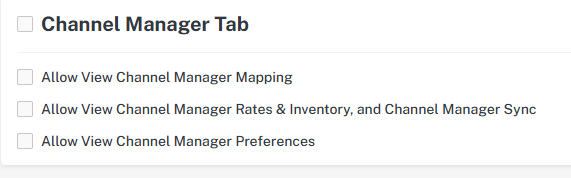
The relevant user privileges are below
Where to Find & Edit Codes on SiteMinder
Firstly, access your SiteMinder platform.
When you first log in, you will be on the SiteMinder Dashboard.
1. Navigate to the "Distributions" tab and you will find a list of menu options on the left-hand side.
2. Click into "Connectivities" and it will expand to show the "GuestPoint (New)" channel.
3. Click into this option, you will see the "Settings" page first.
4. Navigate to the "Rooms and Rates Mapping" tab.
This is where you manage the codes of your SiteMinder rate plans to link back to GuestPoint. See below for a rough legend of what each field refers to.
A CSV Export is available in the triple dot settings icon on the right-hand side where you can download a CSV export of all mapped/unmapped rate plans. This is useful to provide to us when you wish to make edits to GuestPoint end of connectivity codes on your behalf.
Syncing your Rates & Inventory to SiteMinder from GuestPoint
If you are creating a completely new rate plan or room type you should always push a full sync from GuestPoint once your room, inventory, and rate codes are inputted on both SiteMinder and GuestPoint ends.
In Management > Channel Manager tab, you will find a Channel Manager Sync option.
In Management > Channel Manager tab, you will find a Channel Manager Sync option.
This option can push your rates and inventory from GuestPoint to SiteMinder at any time.
Proceeding will bring up the sync interface.
Steps to Sync rates or inventory to SiteMinder:
- Select SiteMinder as the channel
- Select Availability or Rates or both
- Select all applicable room types you are syncing (even if you are syncing rates only)
- Select all applicable rate plans you are syncing (not required if syncing Availability only)
- Select a stay date range to sync to if required. By default, this is set to 730 days or 2 years which is the maximum update period we do for SIteMinder.
- Proceed with blue 'Sync' button in bottom right corner of this sync page.
- Syncing should take 1 - 2 minutes to reach SiteMinder. Verify your syncs have gone through by proceeding to SiteMinder platform to see if they have.