How to Connect Xero to GuestPoint. Information we will push to Xero. FAQ's and How to Troubleshoot
Please see the Right hand side for the Table of Contents.
Article 1 — Data flow overview
Understanding
how GuestPoint PMS and Xero share data will help you configure the integration
correctly and troubleshoot issues when they arise.
One-way data flow.
GuestPoint PMS
sends data to Xero. The flow is one-way — no data is ever imported from Xero
into GuestPoint PMS. Your Xero chart of accounts and tax rates are read during
setup to enable account mapping, but they are never modified except by the
journals GuestPoint PMS posts.
What GuestPoint PMS sends to Xero
Everyday, after
your nightly rollover is completed, GuestPoint PMS builds a single manual
journal summarising that day's financial activity and posts it directly to your
Xero organisation. The journal includes:
• Revenue entries — mapped to
your nominated Xero income accounts with the correct GST/tax type applied
• Payment entries — covering
deposits, overs and unders
• Company debtor movements —
amounts owed by companies against their Xero debtor accounts
• Room account to company debtor
transfers — where a room account balance transfers to a company
• Deposit transfers — movement of
deposit balances
How amounts are handled
All journal
amounts are tax-inclusive (GST-inclusive). Each line is tagged with the tax
type configured during account mapping — for example, OUTPUT, INPUT, EXEMPT, or
BAS Excluded. Debit and credit totals must balance before Xero will accept the
journal.
When does data sync?
Trigger
|
When
it posts
|
After nightly
rollover
|
Automatically,
as soon as the rollover is completed in GuestPoint PMS
|
Scheduled
|
At a fixed time
— daily, weekly, fortnightly, or monthly
|
Manual (on
demand)
|
Immediately,
when you click Post to Xero from the Accounting Interfaces screen
|
What GuestPoint PMS does not send to Xero
• Individual guest folios or room
charges
• Separate invoice or payment
records
• Guest contact details or
profiles
• Reservation or booking data
The
integration is designed for nightly summary journals only. It does not
replace a full accounting sync and is not intended to replicate individual
transactions in Xero.
Article 2 — Connecting GuestPoint PMS to Xero
This one-time
setup connects GuestPoint PMS to your Xero organisation. Once complete, the
integration runs automatically.
Before you begin
• An active Xero subscription
• Administrator access to the
Xero organisation you want to post journals to
• Administrator access to
GuestPoint PMS for the property being set up
1. Go to Management > Setup > Transaction Accounts>Settings
2. Set the export format
dropdown to Xero and save.
This
tells GuestPoint PMS to prepare journal data in a Xero-compatible format.
Without this step the Connect with Xero option will not be visible.
Step 2 — Start the connection
3. Go to Management > Setup > Accounting Interfaces.
4. Click Connect with Xero. Your browser will open the Xero login screen.
5. Log in to Xero with your Xero credentials.
6. Click Allow Access when Xero displays the permissions GuestPoint PMS is
requesting.
7. You will be returned to
GuestPoint PMS automatically.
Xero sends an
authorisation code back, which GuestPoint PMS exchanges for a secure access
token — you do not need to copy or paste anything.
What permissions does GuestPoint PMS
request?
GuestPoint
PMS requests permission to read your chart of accounts and tax settings, and
to post manual journals on your behalf. It does not request access to
invoices, contacts, bank accounts, or payroll data.
Step 3 — Select your Xero organisation
If your Xero
account is linked to more than one organisation, you will be asked to select
which one GuestPoint PMS should post journals to.
 This
cannot be changed without fully disconnecting and reconnecting. See Article 5
(FAQ) — How do I disconnect from Xero? if you need to switch organisations.
This
cannot be changed without fully disconnecting and reconnecting. See Article 5
(FAQ) — How do I disconnect from Xero? if you need to switch organisations.
Step 4 — Map your accounts
After
connecting, you will be taken to the account mapping screen. See Article 3 —
Mapping your accounts for a full walkthrough.
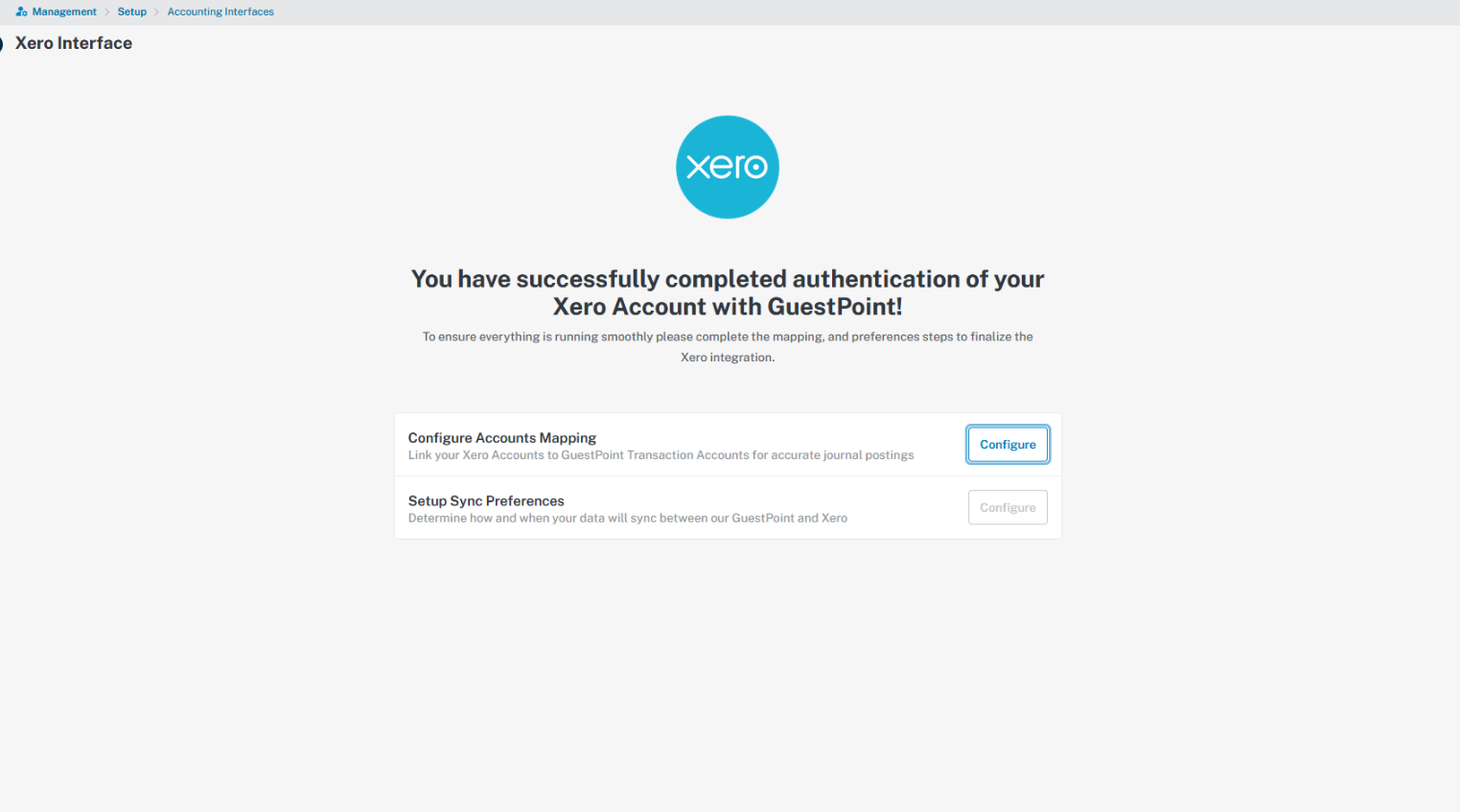
Step 5 — Set sync preferences
Choose how and
when journals will post to Xero. See Article 4 — Sync preferences for your
options.
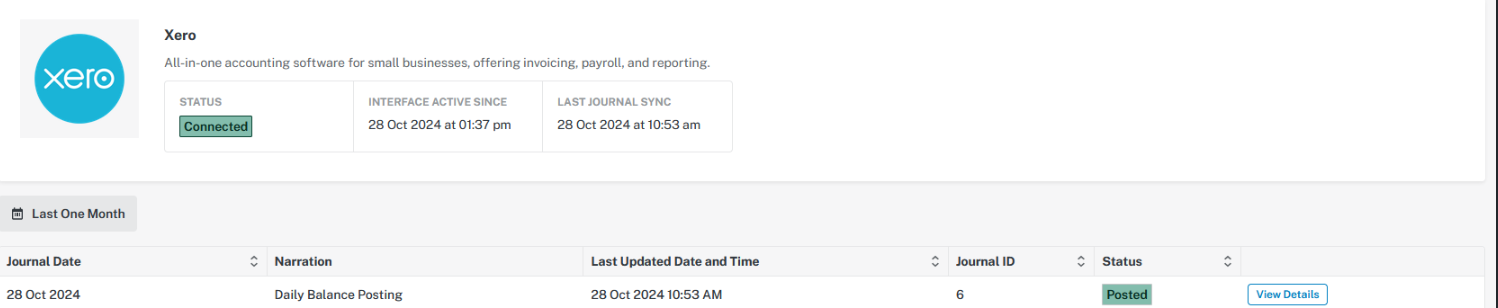
Step 6 — Confirm the connection is live
Once all steps
are complete, the Accounting Interfaces screen will show the status as
Connected. GuestPoint PMS will begin posting journals according to your chosen
schedule.
Continued — Required #3: Getting started
Article 3 — Mapping your accounts
Account mapping
links each GuestPoint PMS transaction account to an account in your Xero chart
of accounts. This determines where each line of the nightly journal is posted
in Xero.
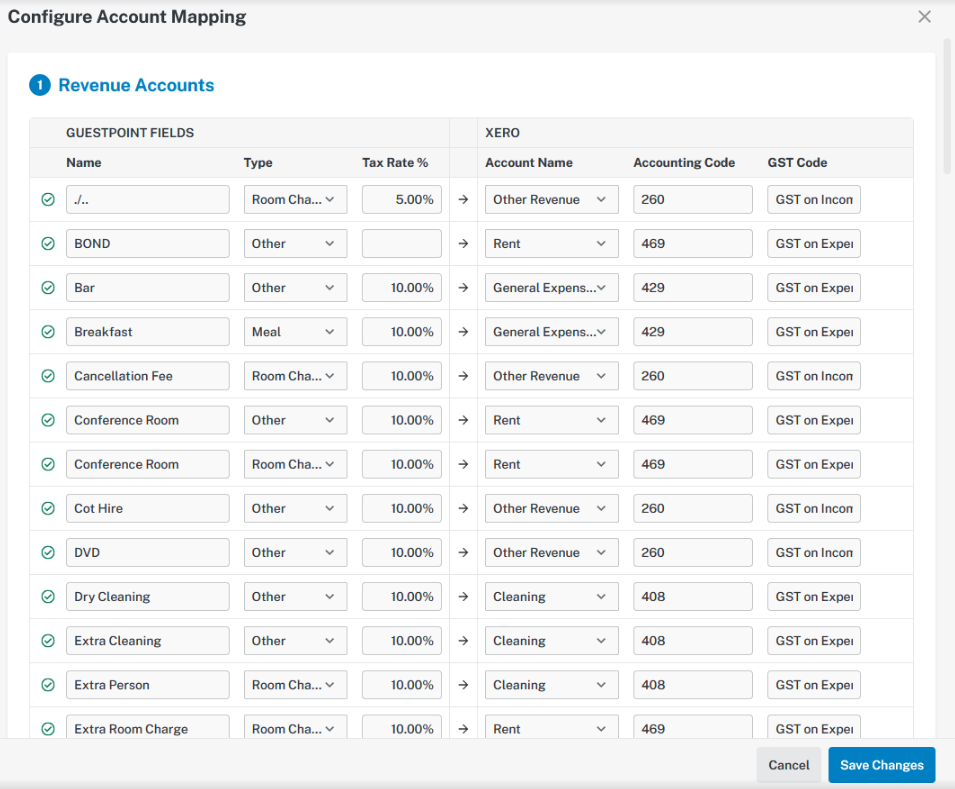
How the mapping screen works
GuestPoint PMS
reads your active Xero accounts when you open the mapping screen. For each
GuestPoint PMS account, select the corresponding Xero account from the
dropdown, then confirm the GST/tax type.
Why are some Xero accounts not
appearing?
Only
accounts with Active status in Xero appear in the dropdown. Archived accounts
and Xero system accounts are automatically excluded. If an account is
missing, check its status in your Xero chart of accounts then return to this
screen.
Account types requiring mapping
Account
type
|
Description
|
Revenue accounts
|
One mapping per
transaction category (e.g. accommodation, food and beverage, extras)
|
Room account
debtors
|
Xero debtor
account used when a guest's room account carries a balance at rollover
|
Company debtors
|
Xero debtor
account used for company accounts billed directly
|
Deposit account
|
Liability
account in Xero where guest deposits are held
|
Overs / Unders
|
Account used to
record small variances between expected and actual payment totals
|
GST and tax type mapping
Each mapped
account must have a GST/tax type that matches the tax type on the corresponding
Xero account, or journal validation will fail. Supported types:
• OUTPUT — standard GST on sales
• INPUT — GST on purchases
• EXEMPTEXPENSES — GST-exempt
expenses
• EXEMPTOUTPUT — GST-exempt
income
• BASEXCLUDED — outside the scope
of GST
• GSTONIMPORTS — GST applicable
on imported goods
Unsure which tax type to use?
Check
with your accountant or refer to your Xero chart of accounts settings for
each account.
Saving your mappings
Click Save once
all accounts are mapped. GuestPoint PMS records all mappings and marks the
integration as Mapping Completed. You can return to update mappings at any time
if your Xero chart of accounts changes.
Article 4 — Sync preferences
Sync
preferences control when GuestPoint PMS posts nightly journals to Xero. Choose
from three modes depending on how your property runs its end-of-day process.
Sync modes
Manual (on demand)
Mode
|
How
it works
|
After nightly
rollover (recommended)
|
A journal posts
to Xero automatically each time a nightly rollover is completed. No
scheduling required.
|
Scheduled
|
Journals post at
a fixed time — daily, weekly, fortnightly, or monthly. Any rollovers since
the last run are batched together.
|
Manual (on
demand)
|
You post
journals yourself by clicking Post to Xero. Useful for testing or catch-up
posting.
|
This
setting only affects future journals. Journals already posted to Xero are not
changed.
Timezone and sync time
If using
scheduled posting, set the sync timezone to match your property's local
timezone. This ensures journals post at the correct local time rather than
server time.
What happens if a journal fails?
GuestPoint PMS
automatically retries the journal up to three times, waiting a configurable
interval between each attempt (default 60 minutes). If all retries fail, the
journal is flagged as permanently failed and must be re-triggered manually from
the Accounting Interfaces screen.
If Xero returns
a Forbidden error, the integration displays a Reconnection required message.
Disconnect and reconnect following the steps in Article 2.
Article 5 — Frequently asked questions
General
What does this integration actually do?
GuestPoint PMS
posts a single manual journal to Xero for each nightly rollover. The journal
summarizes the day's revenue, payments, debtor movements, and deposit activity.
It does not sync individual transactions, guest folios, invoices, or contacts.
Does data flow from Xero into GuestPoint PMS?
No. GuestPoint
PMS reads your Xero chart of accounts and tax rates during setup to enable
account mapping, but it does not import any financial data from Xero. The
integration is one-way.
Can I use this with multiple Xero organisations?
Each GuestPoint
PMS property connects to one Xero organisation. Multiple properties each need
their own separate connection.
Setup and configuration
Why are some of my Xero accounts not appearing in the
mapping dropdowns?
Only accounts
with Active status in Xero are shown. Archived accounts and Xero system
accounts are excluded. Log into Xero, set the account to Active under Chart of
Accounts, then return to the GuestPoint PMS mapping screen — the updated list
loads automatically.
What permissions does GuestPoint PMS request from Xero?
GuestPoint PMS
requests permission to read your chart of accounts and tax settings, and to
post manual journals. It does not request access to invoices, contacts, bank
accounts, payroll, or any other area of Xero.
Can I post journals as drafts rather than finalized
entries?
Yes. In sync
preferences, choose Draft or Posted. Draft journals appear in Xero but must be
approved manually before they affect your account balances.
Posting and sync
When does data sync to Xero?
This depends on
your sync preference — automatically after each nightly rollover, on a fixed
schedule, or manually on demand. See Article 4 — Sync preferences for details.
What happens if a journal fails to post?
GuestPoint PMS
retries the journal up to three times. If all retries fail, the journal is
flagged as permanently failed and must be re-triggered manually from the
Accounting Interfaces screen. Check the error details against the journal —
they indicate whether the issue was a validation error (mismatched tax type,
zero-value line) or a connectivity issue with Xero.
I see a 'Reconnection required' message — what does this
mean?
The secure
connection between GuestPoint PMS and Xero has expired, usually because the
Xero access token was revoked or the authorisation was removed from Xero's
connected apps. Disconnect and reconnect following Article 2.
How do I reconcile the nightly journal in Xero?
Each journal
posted by GuestPoint PMS includes the narration "Daily balance for night
of [date]" so you can identify it easily. Your accountant can match the
journal lines against your bank feed during reconciliation in the normal way.
All amounts are tax-inclusive and already tagged with the correct GST/tax type.
How do payment processing fees appear in Xero?
Payment
processing fees are not automatically included in the nightly journal. If your
property charges processing fees, reconcile these separately in Xero against
the corresponding bank transactions.
How do I disconnect from Xero?
Go to
Management > Setup > Accounting Interfaces and click Disconnect.
GuestPoint PMS will remove the stored Xero credentials. Journals already posted
to Xero are not affected. Your account mappings are preserved — if you
reconnect to the same organisation you will not need to remap from scratch.
Troubleshooting
The integration shows as connected but no journals are
appearing in Xero
•
Confirm the nightly rollover
has been completed in GuestPoint PMS for the relevant dates
•
Check sync preferences to
confirm when journals are scheduled to post
•
Open Accounting Interfaces and
review the Journal History for failed entries
•
If you see a Reconnection
required status, disconnect and reconnect
A journal has been marked as permanently failed — what do
I do?
Open the
Accounting Interfaces screen, locate the failed journal in the Journal History,
and click re-trigger. Before doing so, review the error details — they will
indicate whether the issue was a validation error or a connectivity issue with
Xero.

