Setting up Multi-Factor Authentication (MFA)
🎥 Watch: Setting up MFA (about 3.5 minutes)
This short video walks through the whole setup, from turning MFA on in Users & Rights to signing in with your first code. Prefer to read? The step-by-step guide is below the video.
Quick Answer: go to Management > Setup > Users & Rights > MFA Configuration, switch the toggle on, click Yes, Turn on for Everyone, turn on your verification methods, check each user's Status is on, then click Save Changes. It takes about two minutes.
Which method should I use? TOTP (Authenticator App) is recommended because it's the most secure. If you or your staff aren't comfortable using apps, Email OTP is the easiest to set up. You can turn on more than one method.
Why turn on Multi-Factor Authentication?
Most security breaches in the accommodation industry don't come from someone breaking through security systems. They come from a real username and password that has been stolen through a phishing email, a reused password or a shared login.
Multi-Factor Authentication (MFA, also called two-factor authentication or 2FA) stops this. After entering their password, each user also has to enter a one-time code from their phone or email. A stolen password on its own is no longer enough to get into your GuestPoint, your reservations or your guests' details.
We strongly recommend turning MFA on for every user at your property.
Before you start
- You need access to Users & Rights. Log in with a user that has the Admin Account Type. Only Admin users can open Users & Rights.
- Using the desktop version of GuestPoint (version 9)? Update GuestPoint to the latest version on every computer at your property before you turn MFA on.
- Give every staff member their own login. MFA codes go to one person's phone or email, so shared logins don't work well with MFA. See Users & Rights to create a user for each staff member.
- Check each user's email and mobile number. Email OTP needs a different email address for each user, and SMS OTP needs a mobile number (with its Country Code) on each user. To check or fix them, switch on Expand All on the Users & Rights screen, update the Email, Country Code and Mobile Number fields, then click Save Changes at the bottom right.

Turning MFA on applies to all user accounts at your property. Let your staff know before you switch it on so they have their phone or email ready the next time they log in.
Step 1: Open MFA Configuration
1. Log in to GuestPoint
Go to https://pms.guestpoint.com/reservations and log in.
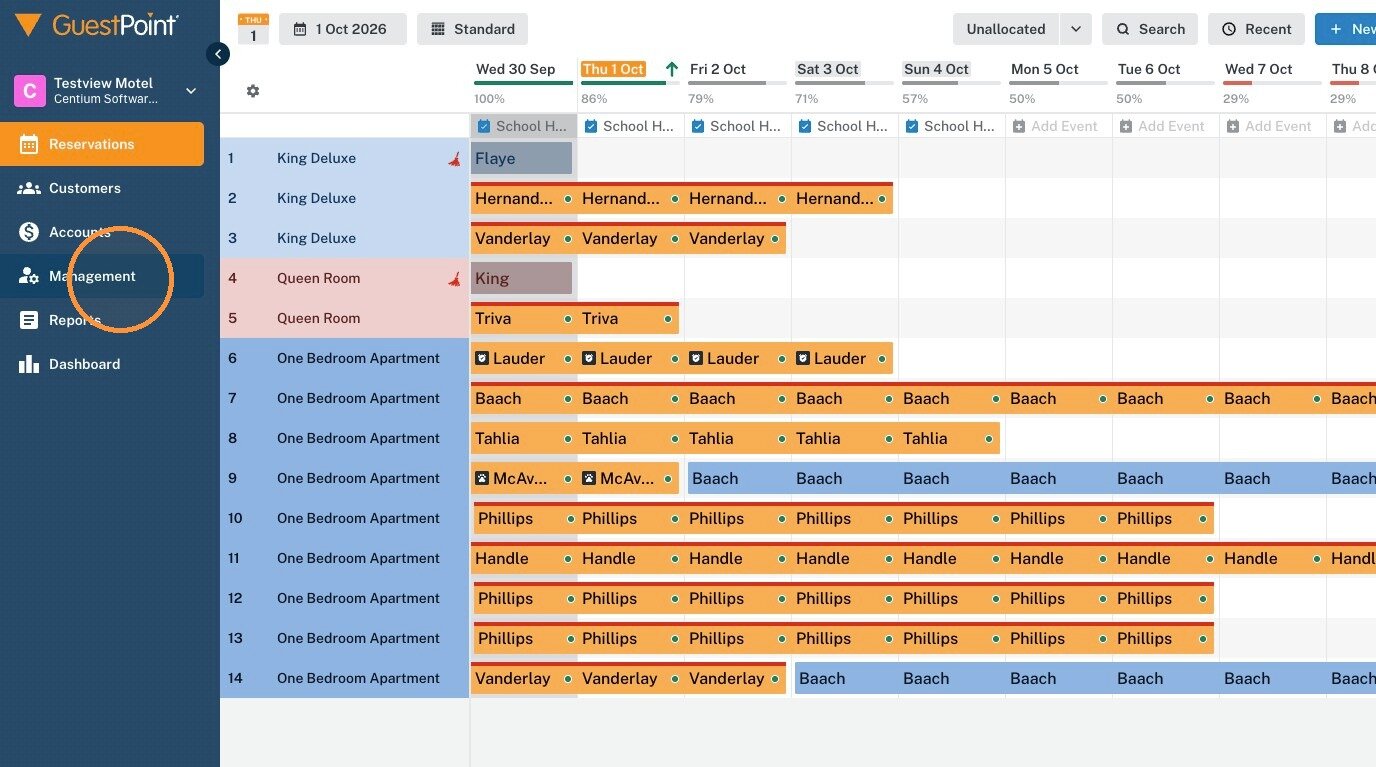
2. Click Management
In the left-hand menu, click Management.
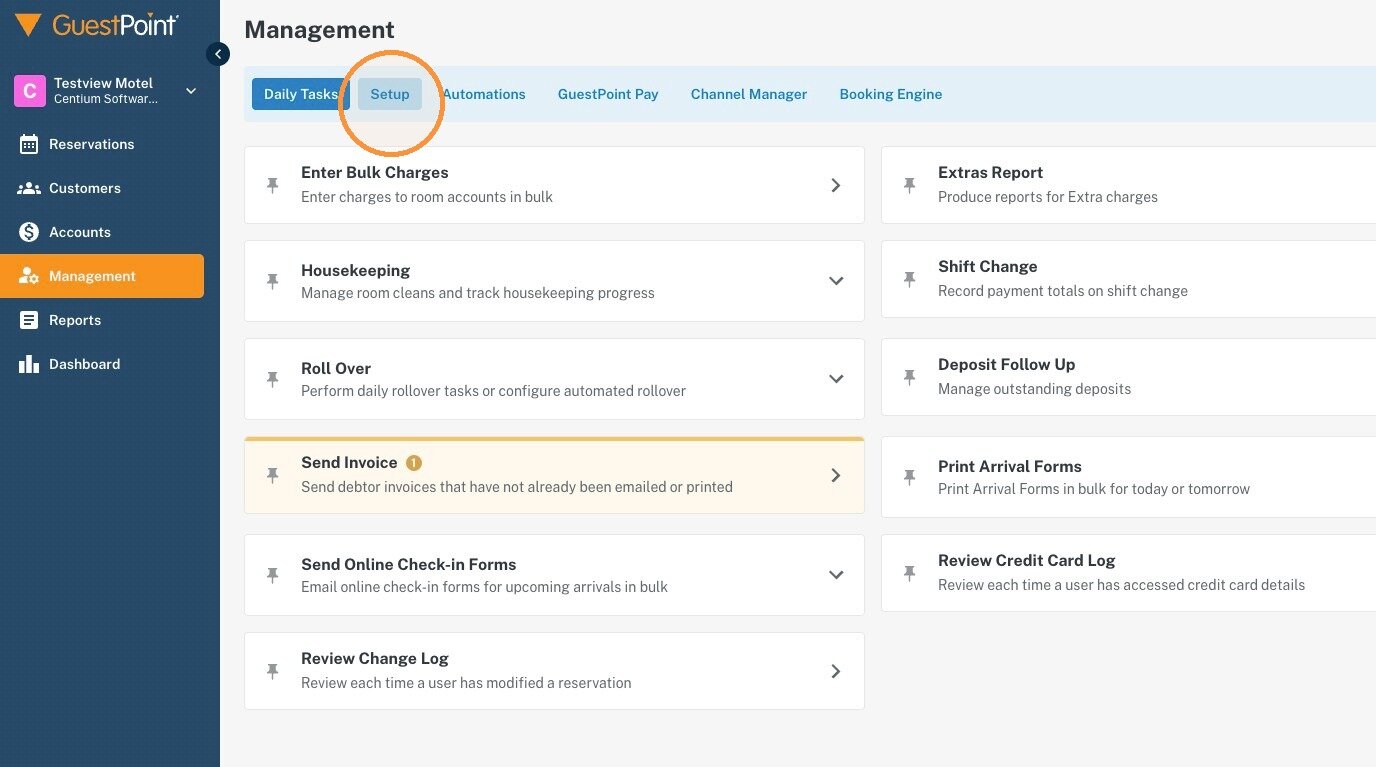
3. Click the Setup tab
At the top of the Management screen, click Setup.
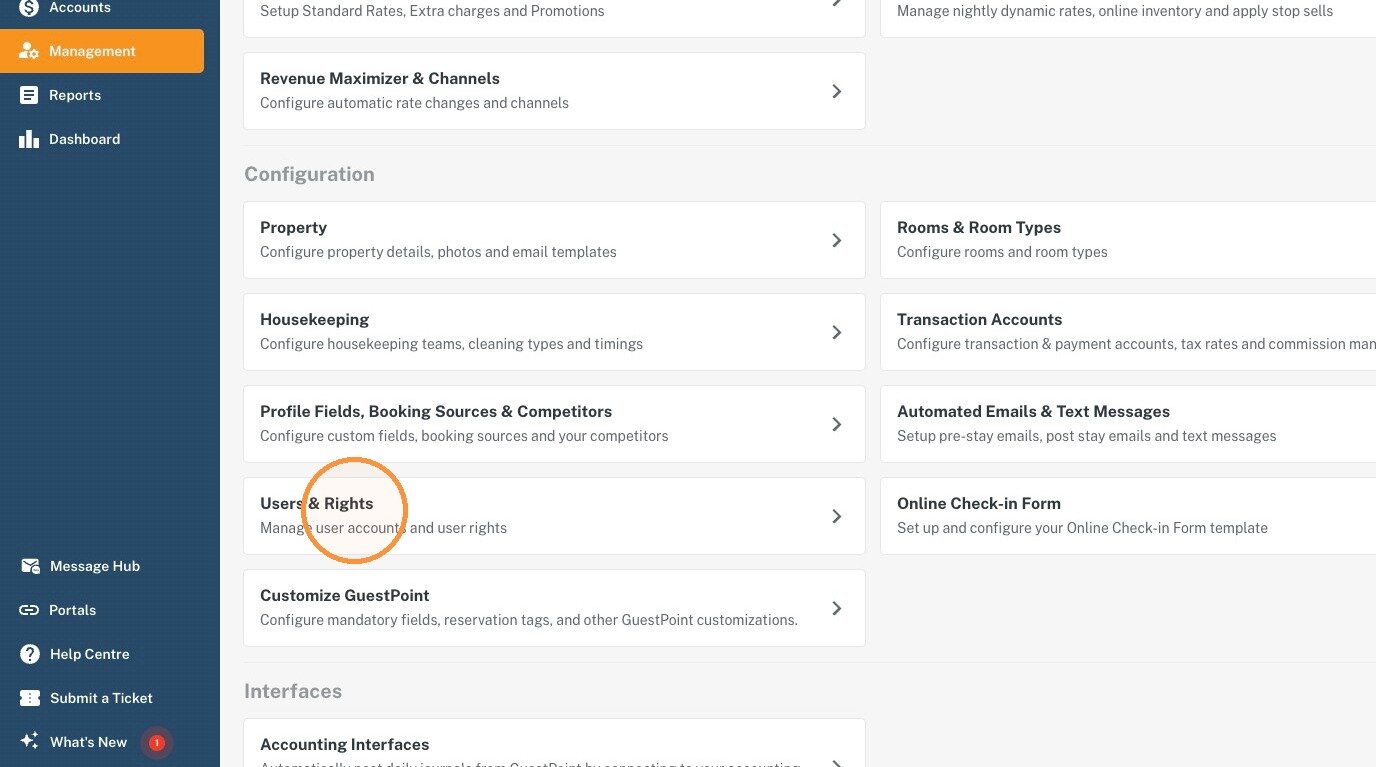
4. Click Users & Rights
Under Configuration, click Users & Rights.
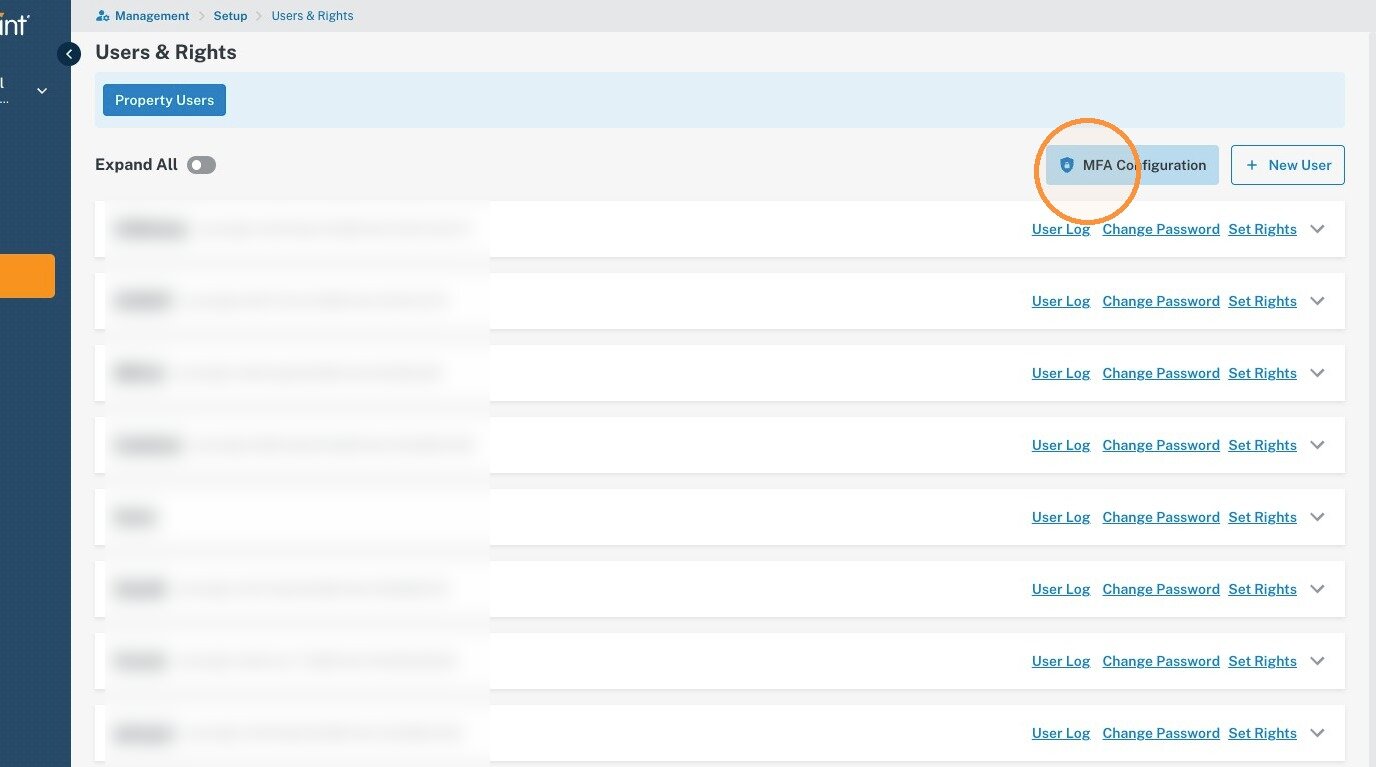
5. Click MFA Configuration
Click the MFA Configuration button at the top right, next to + New User.
Step 2: Turn on MFA for everyone
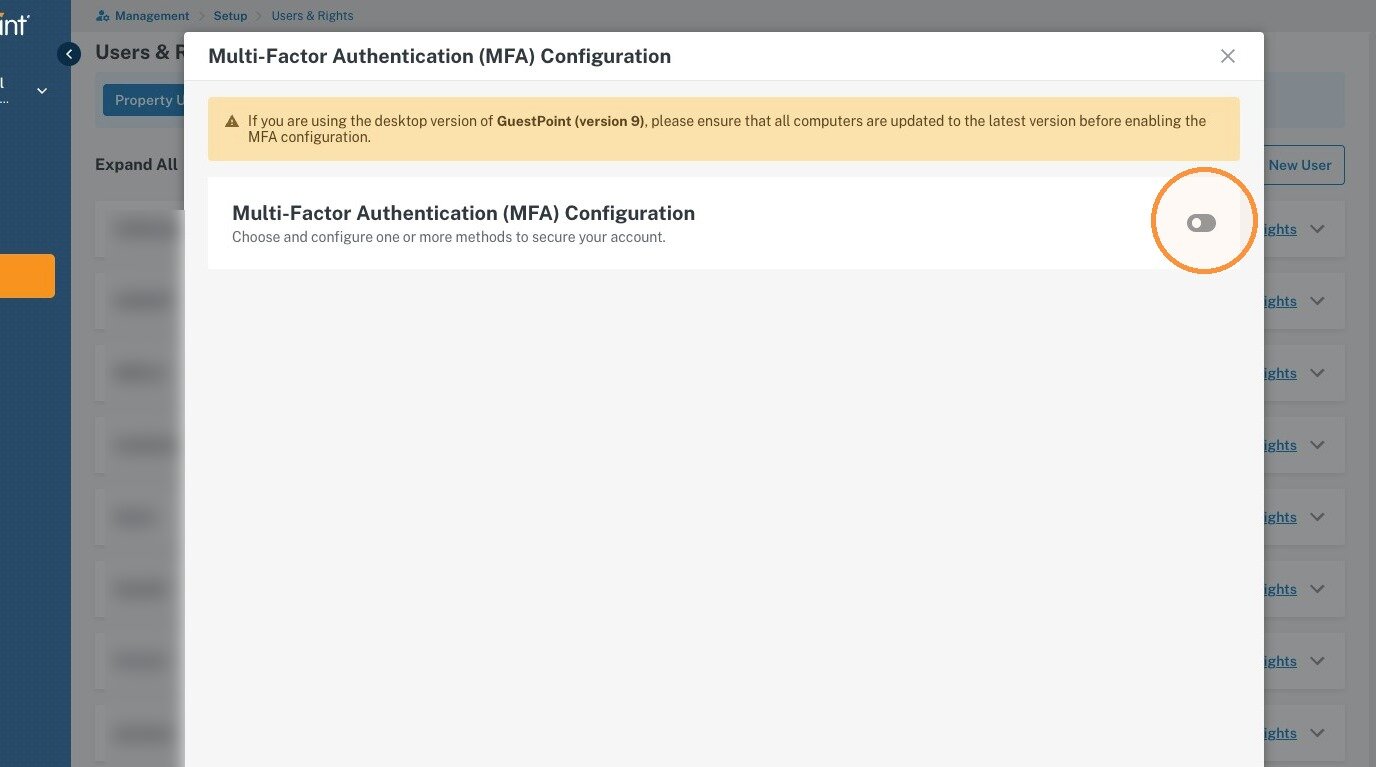
6. Switch on the MFA toggle
In the Multi-Factor Authentication (MFA) Configuration window, click the toggle on the right.
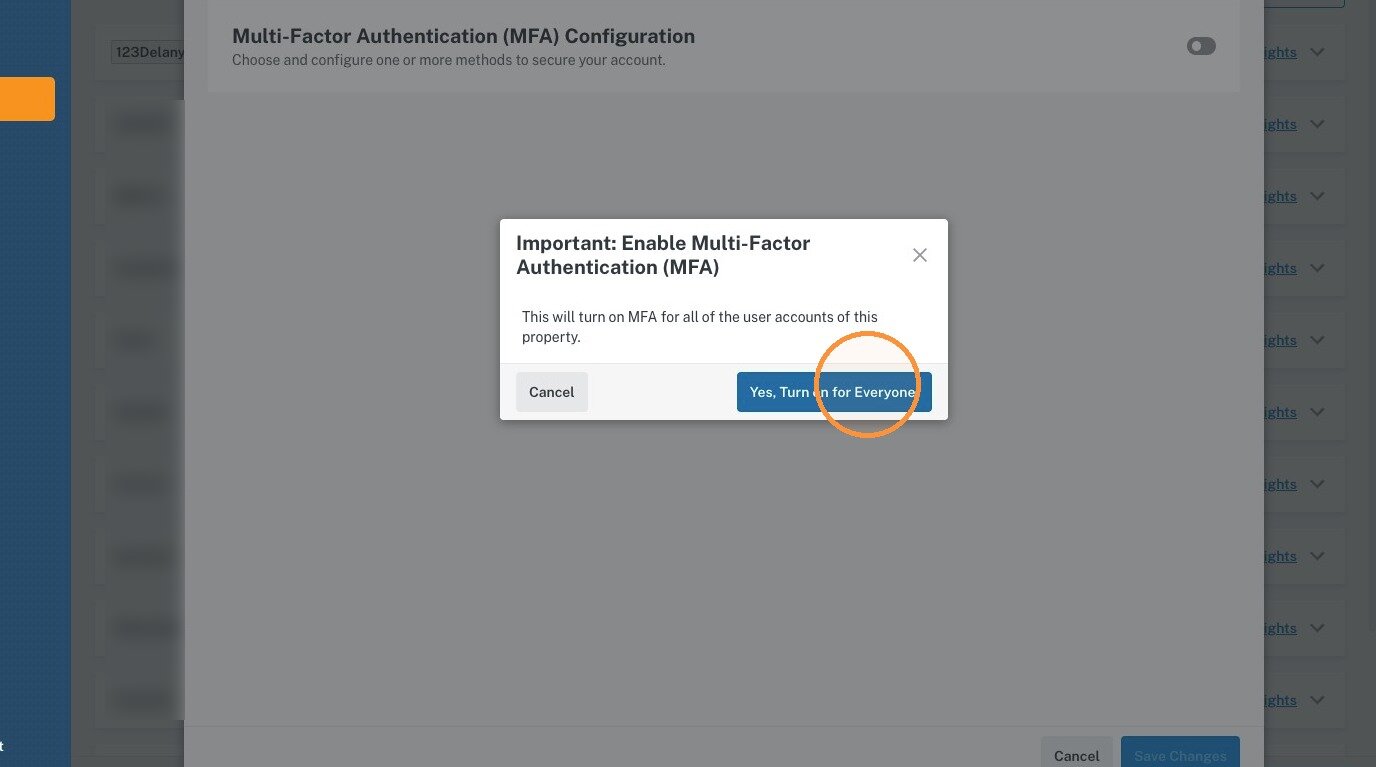
7. Click Yes, Turn on for Everyone
A message appears: "This will turn on MFA for all of the user accounts of this property." Click Yes, Turn on for Everyone.
Step 3: Choose your verification methods
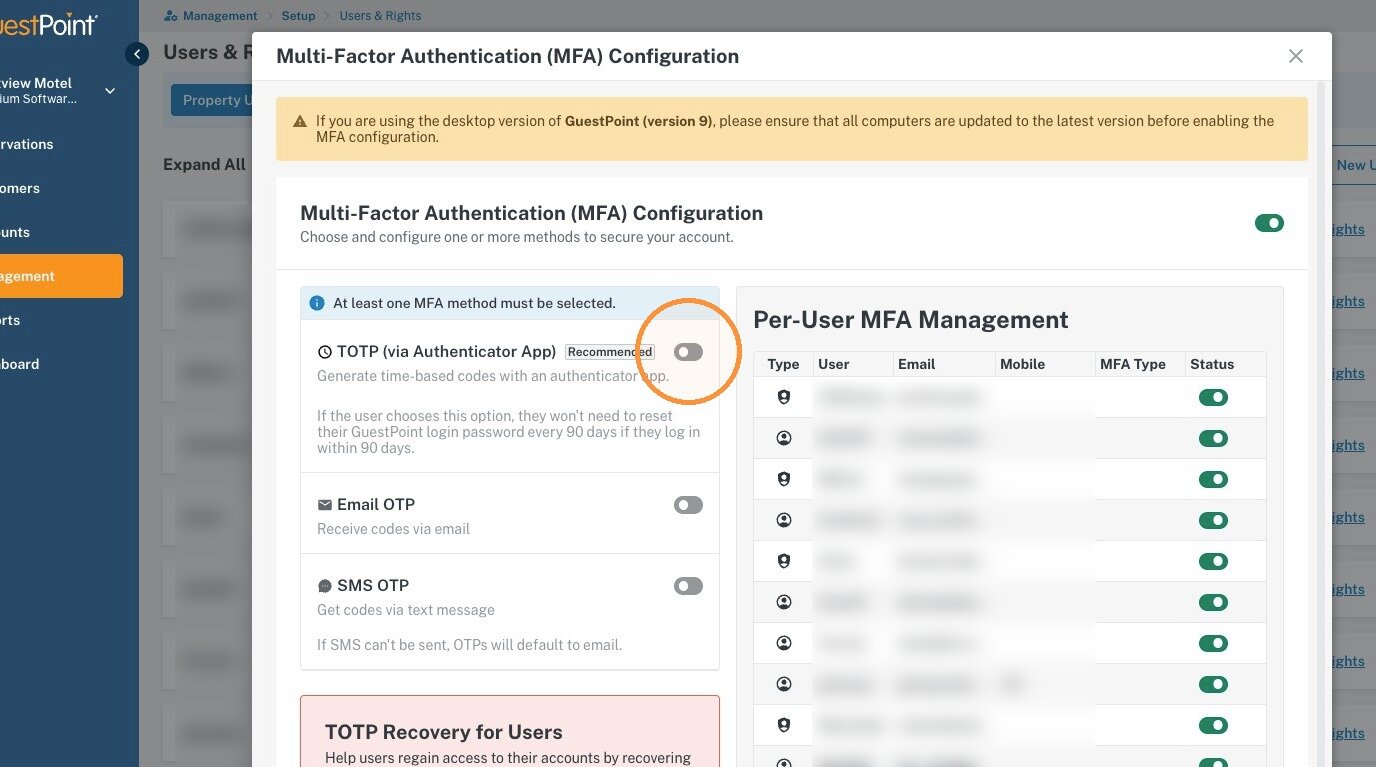
8. Turn on TOTP (via Authenticator App)
Switch on TOTP (via Authenticator App). This is the recommended method. You can also turn on Email OTP and SMS OTP as extra options; if some staff aren't comfortable using apps, turning on Email OTP as well gives them the easiest option. At least one method must be selected.
| Method | How it works | Good to know |
| TOTP (via Authenticator App) Recommended | The user scans a QR code with an authenticator app such as Google Authenticator, Microsoft Authenticator or Authy. The app shows a 6-digit code that changes every 30 seconds. | Most secure. Works without phone signal. Users on TOTP won't need to reset their GuestPoint password every 90 days, as long as they log in at least once every 90 days. |
| Email OTP Easiest to set up | A one-time code is emailed to the user each time they log in. | No app to install. Each user needs their own email address. You can't use the same email address for more than one user. |
| SMS OTP | A one-time code is sent by text message to the user's mobile number. | The user needs a mobile number in Users & Rights. If the SMS can't be sent, the code is sent by email instead. |

Can't turn on Email OTP? Each user needs their own email address. Click Cancel to leave MFA Configuration, switch on Expand All on the Users & Rights screen, give each user a unique email address, click Save Changes, then open MFA Configuration again.
9. Check your users and click Save Changes
The Per-User MFA Management list on the right shows every user with their Email, Mobile, MFA Type and Status. Check that the Status toggle is on for each user, then click Save Changes.
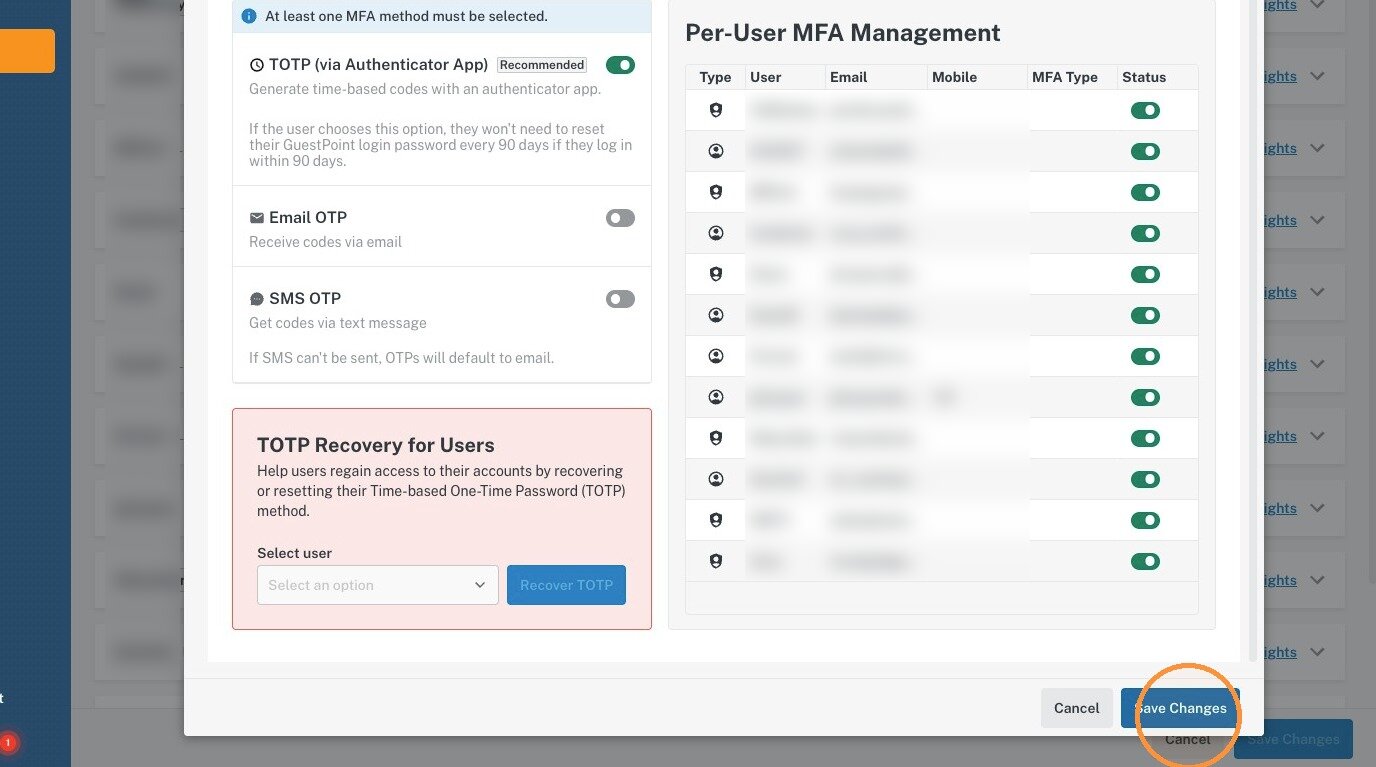
If you switch a user's Status off, GuestPoint warns that this "will reset this user profile back to the basic authentication" and asks you to confirm with Yes, Turn off MFA. That user then signs in with just their username and password, so only do this if you have a good reason.

While you're in this list, look for users who have left or no longer need access, and disable them in Users & Rights.
What your staff will see
The next time each user logs in, they'll enter their serial number, username and password as normal and click Continue, then be asked for a one-time code:
- Authenticator app (TOTP): the first time, they scan the QR code shown on screen with their authenticator app. After that, they open the app and type in the current 6-digit code.
- Email or SMS: they check their email or phone for the code and type it in.

Never share your password or a login code in reply to an unexpected message or call, even if it looks genuine. Your MFA code is for you only.
Helping a user who has lost or changed their phone
If a user can't get codes from their authenticator app (new phone, app reinstalled, the GuestPoint entry has disappeared, or every code is rejected as incorrect), an administrator can reset their authenticator link in the TOTP Recovery for Users box in MFA Configuration: choose the user under Select user and click Recover TOTP. The user then scans a new QR code the next time they log in. This only resets the authenticator app; it does not change which MFA methods are turned on.
For the full steps, what to do if you're the only administrator and you're locked out, and how to set the app up again afterwards, see Lost your authenticator codes? How to recover your GuestPoint login.
Frequently asked questions
Can I change the MFA methods later?
Yes. Go back to MFA Configuration at any time to turn methods on or off, then click Save Changes.
Can two users share the same email address for Email OTP?
No. Each user needs their own email address to receive codes.
A user isn't receiving their email code. What should they check?
Check the junk or spam folder, and make sure the email address on their user in Users & Rights is correct (switch on Expand All to see it).
Do I still need a strong password?
Yes. MFA is an extra layer, not a replacement. Use a strong password for GuestPoint that you don't use anywhere else. See Password Reset Options for GuestPoint's password requirements.
What if a user has no phone signal?
Authenticator apps work without signal or internet, which is one reason TOTP is recommended. If an SMS code can't be sent, GuestPoint sends the code by email instead.
Should I turn on MFA anywhere else?
Yes. Turn on two-factor authentication for your business email and every OTA extranet (such as Booking.com and Expedia) as well. They are targeted just as often as your PMS.