Forgot Your GuestPoint Password? Password Reset Options
How to Reset your Password for your GuestPoint Username
Method 1 - Password Reset Link
If you forget your password for your GuestPoint User, we have a simple "Forget Password" method that can assist you in recovering your password yourself.
If you forget your password for your GuestPoint User, we have a simple "Forget Password" method that can assist you in recovering your password yourself.
This feature is available by accessing GuestPoint through our Cloud Version at https://pms.guestpoint.com/
You will need to enter the email address attached to your GuestPoint username.
You will need to enter the email address attached to your GuestPoint username.
Method 2 - Manual Password Reset with Support
Alternatively, GuestPoint Support can also manually reset your password if we are able to verify your password request is legitimate.
You can initiate a manual password reset emailing us at support@guestpoint.com with the subject "Password Reset Request" from your main property reservation email with your GuestPoint Serial Number and GuestPoint Username.
These three details are sufficient for Support to action a Password Reset for you.
METHOD 1 - Resetting your Password with "Forgot Password"
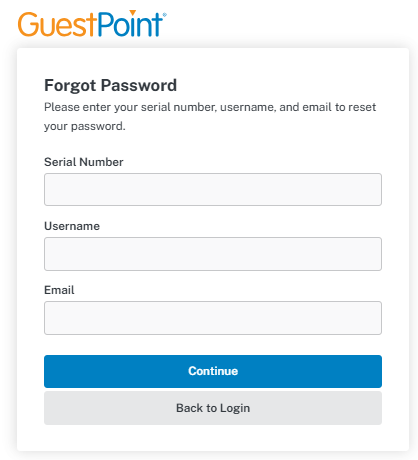
Once on the log-in screen, navigate to the "Forgot Password" link just underneath the orange "Continue" button.
You will be asked to input your GuestPoint Property Serial Number, your GuestPoint Username, and the email address attached to that GuestPoint user.
Click blue "Continue" button after entering these details and we will send you a password reset link if successful.
Please wait up to a minute or two for below email to come through. If you don't see it after two minutes, check your Junk/Spam box.
You will see a blue "Reset Password" link within the email. Click into it to proceed to the page where you can reset your password.
Please note important GuestPoint Password Requirements:
- Minimum length of 7 characters
- Must contain Upper and lower case characters (have a capital letter somewhere)
- Must contain at least 1 number
- Must contain at least 1 special character (i.e. ! @ # $ % ^ & * _ - +)

If more than one GuestPoint Username is using the same email attached to your GuestPoint User, the "Forgot Password" feature does not work.
The email address must be uniquely used by one GuestPoint Username only.
You will receive a "Non Unique Email found" email (shown below) in place of the "Password Reset" email we send you.
Please initiate a manual password reset by contacting GuestPoint Support at support@guestpoint.com from your main property email.
Use the email subject title "Password Reset Request" and provide your GuestPoint Serial Number and the GuestPoint Username you require a password reset for.
Verifying what Email Address is attached to your GuestPoint Username
To view what the attached email of your signed in GuestPoint Username (or other Usernames with the Administrator GuestPoint User Type) is: navigate to Management > Setup > Users & Rights > Expand your Username out by clicking on it > The email attached to your GuestPoint Username (or other Usernames) can then be found in the "Email" field.

If you find that your property tends to require a password reset quite often, but you cannot use the "Forgot Password" feature due to not having a unique email, you can perhaps try changing the email addresses of each GuestPoint Username to an email address they can access.
You will need the Administrator GuestPoint User Type and the "User & Rights" user privilege enabled for your GuestPoint Username to be able to change the attached emails of GuestPoint Usernames.
You will need the Administrator GuestPoint User Type and the "User & Rights" user privilege enabled for your GuestPoint Username to be able to change the attached emails of GuestPoint Usernames.
METHOD 2 - Requesting a Manual Password Reset from GuestPoint Support
If you are uncomfortable using the "Forgot Password" feature, or it does not work for you because you are not using a unique email, or if you are not receiving the "Password Reset" email, you may manually request a password reset from GuestPoint Support.
GuestPoint Support can manually reset your password if we are able to verify your password request is legitimate & authorised.
How to Request a Manual Password Reset
You can initiate a manual password reset emailing us at support@guestpoint.com with:
1. The subject "Password Reset Request" from your main property reservation email
2. Your GuestPoint Serial Number
3. GuestPoint Username you require a password reset for.
2. Your GuestPoint Serial Number
3. GuestPoint Username you require a password reset for.
These three details are sufficient for Support to be authorised to action a Password Reset for you.
You can also put in a Password Reset request for other GuestPoint Usernames as long as you are emailing from the main property reservation email.
Once your request is verified, we will reply to your email with a Temporary Password.
This Temporary Password can be used to log in once before it asks you to input a new password.
Once you have inputted your new password, please quickly log out and back in with your new password to verify it is working.

In niche cases, if your main property reservation email is reservations@yourdomain but you are emailing from another department, perhaps accounts@yourdomain, the same domain as the main property reservation email can also be used by GuestPoint Support as authorisation for your Manual Password Reset.
How to Check what the Main Property Reservation Email is?
Usually the main reservation email you use for your property is already the main reservation email on your system.
The Main Property Reservation Email can be seen in Management > Setup Tab > Property > Property Details Tab > Expand "Property" under "Property Details" section.
The email in the "Email" field is the email we use as authorisation for manual Password Resets.
We can also use the email in the "Owner" section or the "Manager" section for verification. If are an Owner requesting a Manual Password Reset but you do not put your "Owner" email in this section for privacy reasons, it may take us some more time to verify your details from our CRM.
In niche cases, if your main property reservation email is reservations@yourdomain but you are emailing from another department, perhaps accounts@yourdomain, the same domain as the main property reservation email can also be used by GuestPoint Support as authorisation for your Manual Password Reset.