Quick Answer: The Housekeeping Schedule is located in Management > Setup > Housekeeping.
Click 'Today's Schedule' to generate today's Housekeeping Schedule containing the cleaning schedule for today, assign rooms to your cleaners, produce housekeeper reports for your cleaners, and track & complete Today's Housekeeping Schedule.
Housekeeping Schedule
GuestPoint has a simple Daily Housekeeping Schedule which allows you to manage your daily cleaning schedule, assign rooms to cleaners, produce housekeeper reports for your cleaners, and track your housekeeping schedule progress. It also handles general area cleaning (reception, pool, etc).
The Daily Housekeeping Schedule links back to the "Dirty" or "Clean" room statuses you see back on the main Reservation Plan screen of GuestPoint.
Completing the Daily Housekeeping Schedule will clear your "Dirty" room statuses if they have been marked as "Clean" on the schedule, or they will remain "Dirty" if the clean has been deferred to the next day.
They will also remain "Dirty" status as long as the room has not been marked "Clean" on Today's Housekeeping Schedule, or unless you manually override the "Dirty" status by right-clicking on the room number on the Reservation Plan and marking it as "Clean"
To navigate to the Housekeeping Schedule, proceed to Management > Daily Tasks Tab > Housekeeping, you should see below Housekeeping Schedule options.
You can also view historic housekeeping schedules or future housekeeping schedules.
In "View a Schedule" section, select a date and click Preview.
You will be setting up Today's Schedule most commonly in the morning prior to actual cleaning being done so that you can produce a list of rooms to be cleaned for each cleaner.
MANDATORY - Setting up your Housekeeping
Before you can use the Housekeeping Schedule, you will have to configure your Housekeeping settings first in Management > Setup Tab > Housekeeping
You will need to configure 1 mandatory setting (estimated clean times), and two optional settings (List of Housekeepers and General Areas)
- MANDATORY - Rooms Tab - Estimated time for Stay, Depart, and Linen Change clean types for each room type
- OPTIONAL - Housekeepers Tab - List of Housekeepers
- OPTIONAL - General Areas Tab - List of General Areas to be cleaned
Please see the
Housekeeping Setup article located
here and ensure you at least have your clean times inputted before you start to use the
Housekeeping Schedule.
A list of Housekeepers is optional and the same with adding General Areas to clean. Set these accordingly to your Housekeeping needs.
Without clean times inputted for the default clean types Stay, Departure, and Linen Change for each room type, the Housekeeping Schedule will not work properly with oddities like rooms not showing on the schedule when they should be.
Above 3 clean time fields must not be blank or 0 minutes.
Niche Case - If your Linen Change "Occurs every" field setting is 0 days and not blank, this may also interfere with the automated Stay clean type.
Please input an arbitrary number like 9999 days to effectively de-activate Linen Change from ever being automated.
Creating Today's Housekeeping Schedule
To navigate to the Housekeeping Schedule, proceed to Management > Daily Tasks Tab > Housekeeping, you should see below Housekeeping Schedule options.
Click "Today's Schedule" to see Today's Housekeeping Schedule.
You will see a list of all rooms that need to be cleaned. GuestPoint will automatically allocate certain default clean types to each room as needed.
Please see the help article on
Housekeeping Setup and the section on the available clean types
here.
The rooms that automatically populate Today's Schedule are rooms that have automatically assigned clean types, or have been deferred from Yesterday's Schedule.
If a room needs to be cleaned but it is not showing on the schedule for whatever reason, you can use the "Show All Rooms" button to see and add these rooms to Today's Schedule.
The objective of Today's Housekeeping Schedule is to eventually action the following by the end of the schedule:
- Rooms that have been cleaned to be marked as "Clean" by ticking the "Clean" checkbox
- Rooms that were not required to be cleaned to be assigned the clean type "Not Required" and marked as "Clean"
- Any clean types that were not actioned today but must be actioned the day after to be deferred by clicking "Move to Next Day"
Prior to the actual Housekeeping being actioned for Today, you will be setting up Today's Schedule by assigning housekeepers, marking rooms as a Priority clean, changing clean types as required, or adding notes as required.
Step 1 - Assigning Housekeepers
Expand the "Housekeepers & General Notes" section first by clicking on the section.
You will see a list of available housekeepers on your system. Tick the ones that will be available today.
You will then see them available next to each room that needs cleaning. Tick the relevant housekeeper(s) as needed for each room.
Step 2 - Marking Rooms as Priority and/or Changing the Clean Type
By ticking the Priority checkbox, this will mark the room as a Priority and be shown on any housekeeping schedule reports or the Housekeeping Mobile App.
You can change the Clean Type of each room as required. Mark rooms that do not actually need to be cleaned as "Not Required" clean type with the "Clean" checkbox ticked.
The Move to Next Day option is typically not used until your Housekeepers are back from cleaning. This option defers the assigned clean type to the next day
Step 3 - Printing the Schedule
Once you have set everything up for Today's Housekeeping Schedule, you can proceed to Print your Housekeeper Schedule in report format to provide to your housekeeper(s).
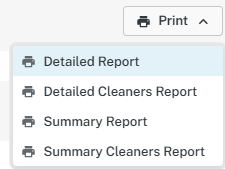
Navigate to the Print option in the top-right and you will see four options accordingly for a Housekeeping Schedule Report.
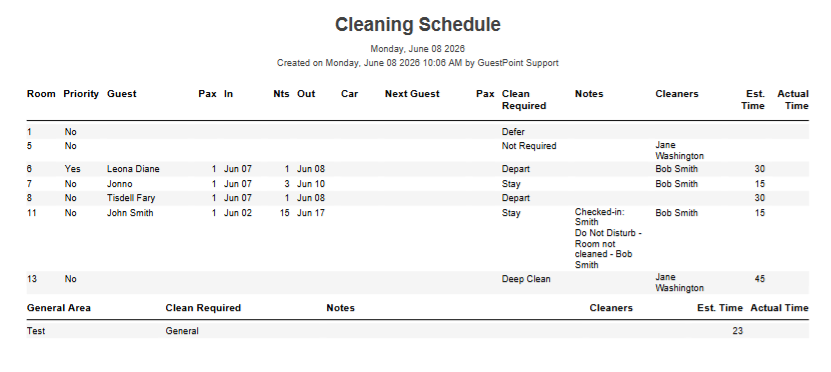
The
Detailed Report includes information related to the guest staying in the room such as Guest Name, Arrival Date, Number of Nights, Departure Date, the number of guests, and the next arriving guest.
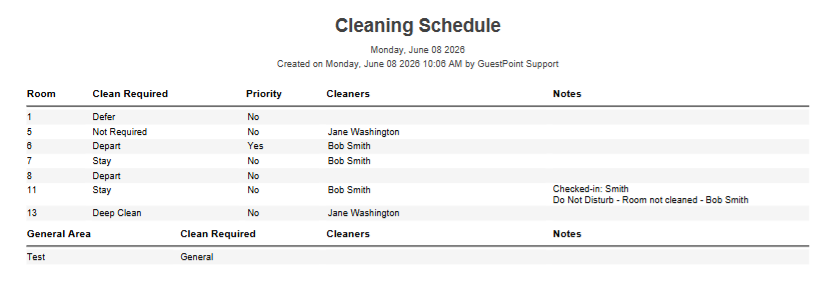
The
Summary Report strips all of that down and is far more suitable for practical housekeeping cleaning usage.
It shows only the room, the clean type required, if it is a priority, which cleaner is assigned, and any notes (the notes come from the "
Daily Notes" box next to each room in the schedule)
Using the "Cleaner Reports" version will simply provide you the same style of report but instead separated page-by-page for each assigned housekeeper that you can print and physically provide to them.
Step 4 - Tracking & Completing Today's Housekeeping Schedule
As your Housekeepers complete their assigned rooms, you will be going back to Today's Schedule to update the progress of each room.
You can do this throughout the day or just come back to it once every cleaner is done.
Again, the objective of Today's Housekeeping Schedule is to eventually action the following points:
- Rooms that have been cleaned to be marked as "Clean" by ticking the "Clean" checkbox
- Rooms that were not required to be cleaned to be assigned the clean type "Not Required" and marked as "Clean"
- Any clean types that were not actioned today but must be actioned the day after to be deferred by clicking "Move to Next Day"
To quickly mark all rooms as Clean, use the "Mark All as Clean" button located just underneath the Print option. This will save you time in manually ticking the "Clean" checkbox for all rooms.
OPTIONAL - Keeping Track of Housekeeping Clean Times
You can put in the Actual time it took for a Housekeeper to clean their room if required in the "ACT" box of each room that was cleaned.
This will allow you to obtain a difference between the estimated time (allocated in Housekeeping Settings) and actual time.
These time details can then be found in the Housekeeping Detailed & Summary Reports.
You can also quickly refer to this time difference in the Housekeepers & General Notes section where you tick housekeepers available for today's schedule.
Whenever you are done with changes to Today's Schedule at any time, make sure you use the Save button.
Please also note that housekeeping schedules Save anytime you use the Print option.
Editing the Housekeeping Schedule for a Future Date
It is possible to "View a schedule" of a future date yet to come and edit the Housekeeping Schedule for that future date.
Please be mindful that if you do this, GuestPoint may not automatically update certain elements of that future schedule.
You will always receive below warning message if you try to Save the schedule for a future date.
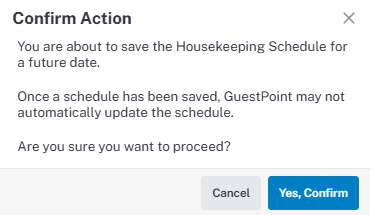
You do not need to set up your Future Housekeeping Schedules on a daily basis as GuestPoint will automatically do it for you behind-the-scenes and have it ready for you when that date become's Today's Schedule.
Only edit a Future Housekeeping Schedule when you truly need to.
Using the Housekeeping Mobile App
If you are using the Housekeeping Mobile App functionality, please ensure you click on the "Enable Mobile App" slider box in Today's Schedule to enable it.
You will need to enable this for every new schedule you do.
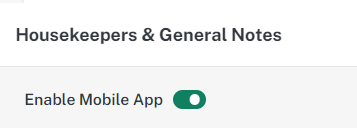
Assigned Housekeepers will then be able to access the list of rooms they have been assigned to clean and easily mark them "DND" or "Clean Complete" from their mobile device.
They can access the
Housekeeping Mobile App through a browser on the mobile device at
http://hka.guestpoint.com/ and entering the property's GuestPoint Serial Number and the Housekeeper's 4 digit PIN Number to log in.
More information about the Housekeeping Mobile App is available here. 

