Housekeeping Setup
Quick Answer: Before you are able to use the Housekeeping Schedule located in Management > Daily Tasks > Housekeeping, you will need to configure your Housekeeping Settings first in Management > Setup > Housekeeping.
Housekeeping Set Up
GuestPoint has a simple Daily Housekeeping Schedule which allows you to manage your daily cleaning schedule, assign rooms to cleaners, produce housekeeper reports for your cleaners, and track your housekeeping schedule progress. It also handles general area cleaning (reception, pool, etc).
Before you are able to use the Housekeeping Schedule located in Management > Daily Tasks > Housekeeping, you will need to configure your Housekeeping Settings first in Management > Setup > Housekeeping.
There are 3 tabs related to Housekeeping Setup - Housekeepers, Rooms, General Areas.
- The Rooms tab contains most of the main Housekeeping Cleaning settings for each of your room type like Clean Times for each Clean Type.
- Housekeepers Tab is where you can create Housekeepers which then allows you to assign different Housekeepers to each room in a Housekeeping Schedule.
- General Areas Tab is an optional area where you can add a list of common areas to be cleaned and how frequently they need to be cleaned, they will appear on the Housekeeping Schedule on the set day(s).
Before your Housekeeping Schedule can work on a basic level, it is mandatory to have a clean time inputted for the Stay, Depart, and Linen Change clean types.

Without clean times inputted for the Stay, Depart, and Linen Change clean types for each room type, the Housekeeping Schedule will not function correctly.
If you have clean times that are blank or 0 minutes for these default clean types, the Housekeeping Schedule will also not function correctly with errors such as rooms not appearing automatically.
SECTION 1 - Rooms Tab - Clean Times & Clean Types for Each Room Type
The Rooms Tab contains the main settings related to your Housekeeping Clean Types such as the Cleaning times of each clean type, and the option to enable other clean types.
Each Room Type has its own housekeeping setting, allowing you to vary the clean times or cleaning preferences of different room types accordingly.
1A: Mandatory Settings for Housekeeping Schedule - Clean Times Inputted for Stay, Depart, and Linen Change
Proceed to the Housekeeping Setup in Management > Setup Tab > Housekeeping.
Navigate to the Rooms tab.
In the Rooms tab you will find your room types.
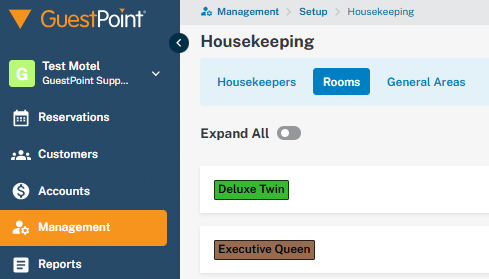
Navigate to the Rooms tab.
In the Rooms tab you will find your room types.
Expand a room type out by clicking on it and you will see below settings. The mandatory cleaning time fields are numbered from 1 - 3.
For the Housekeeping Schedule to function properly, you only need to ensure that you have a time inputted (not blank or 0 minutes) for below 3 clean types:
1. Stay - If a room is Checked In and not Departing Today, they will have a Stay clean type allocated by default.
1. Stay - If a room is Checked In and not Departing Today, they will have a Stay clean type allocated by default.
2. Depart - If a room is Checked In and Departing Today, they will have a Depart clean type allocated by default.
3. Linen Change - This is optional but please input a time for Housekeeping Schedule to work. Linen Change does not trigger automatically as long as you leave "Occurs every" field blank.
Niche Case - If your Linen Change "Occurs every" field is not blank and is 0 days, this may interfere with overwriting the Stay clean type.
Please input an arbitrary number like 9999 days to effectively disable this clean type from being automated.
1B: Available Housekeeping Clean Types - Stay, Depart, Linen Change, Other Cleaning, Additional Clean
Our Housekeeping system has a few default clean types and an Additional Clean option for further customization.
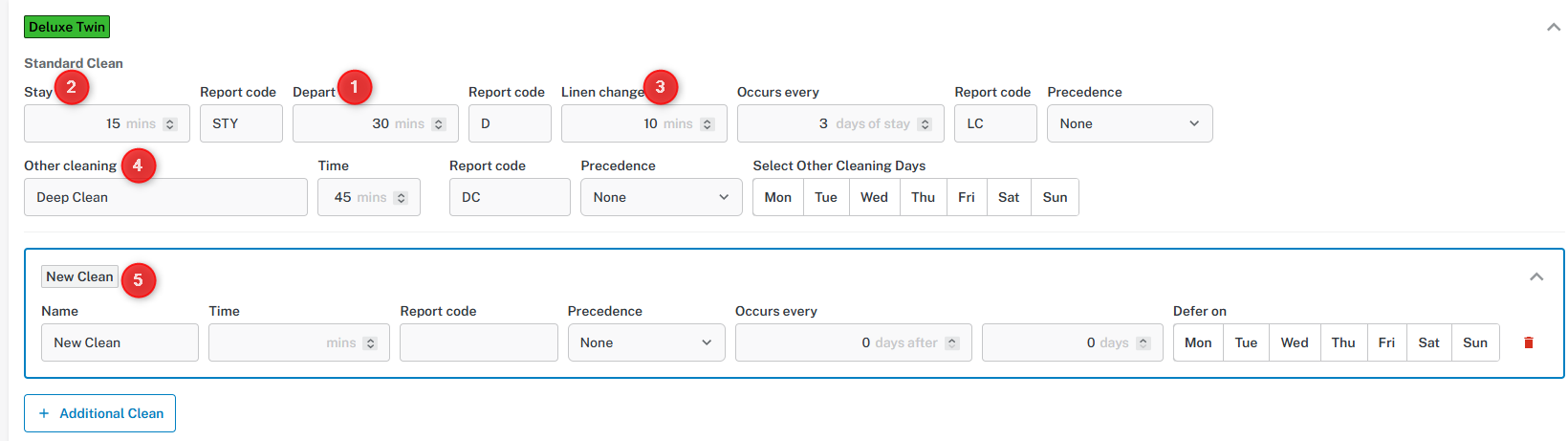
Please refer to numbered references below and a list describing each clean type and how they function.
Please refer to numbered references below and a list describing each clean type and how they function.
- 1. Depart - This clean type is automatically assigned to any rooms checking out on the relevant Housekeeping Schedule date.
- 2. Stay - The Stay clean type is automatically assigned to any rooms staying overnight (i.e. it is their 2nd night and they are checking out the morning after).
- 3. Linen Change - An optional clean type that only automatically triggers if you assign a day value to the "Occurs every" field next to the Linen Change clean time. Else, it can be used as a manual cleaning type.
- 4. Other Cleaning - An optional clean type that can be triggered automatically on a weekly basis (by enabling the relevant Other Cleaning Days), or purely for manual usage if you do not opt to select any Other Cleaning Days
With above settings, I have made my Other cleaning type a Deep Clean and have not opted to select any Other Cleaning Days.
This makes it a completely manual clean type that I can use on as needed basis.

5. Additional Clean - Only available for GuestPoint Premium/Enterprise PMS Licences.
If you want to further customize your cleaning types and the "Other Cleaning" type is not sufficient for your needs, you can add an unlimited number of customizable clean types.
If you do not see the Additional Clean button, this means your GuestPoint Licence is not a Premium/Enterprise Licence.

If you want to further customize your cleaning types and the "Other Cleaning" type is not sufficient for your needs, you can add an unlimited number of customizable clean types.
If you do not see the Additional Clean button, this means your GuestPoint Licence is not a Premium/Enterprise Licence.
The main benefit the Additional Clean feature has over the Other Cleaning type is that you can control the automated setting of the Additional Clean better with the fields "Occurs every" days after & "Occurs every" days.
For example, below inputted day values indicates: Occurs every 3 days AFTER 2 days
You can also have the additional clean type defer on certain days of the week for even more customization. Deferring is useful for days of the week that do not have housekeepers, but an additional clean type or other clean type is scheduled for that exact day of the week. The system will defer that clean type to the Housekeeping Schedule of the following day.

Once you understand clean types and clean times, there are other optional fields related to setting up a clean type.
1C: Report Codes & The Housekeeping Forecast Report
Report Codes is a very useful field that enables usage of our Housekeeping Forecast Report to help you roster your housekeepers for future dates.
Report codes do not affect how the Housekeeping Schedule itself functions, but they do affect the Housekeeping Forecast Report located in Reports > Reservations Tab > Housekeeping Forecast.
Report codes do not affect how the Housekeeping Schedule itself functions, but they do affect the Housekeeping Forecast Report located in Reports > Reservations Tab > Housekeeping Forecast.
The Housekeeping Forecast Report produces a report detailing the number of clean types required on a specific date, in addition to how many rooms & guests are arriving on those same dates.

See below for an example of how the Housekeeping Forecast Report works with above inputted Report Codes.
This report is also available in CSV format if you wish to further manually manipulate your Housekeeping Forecast Report to your preferences.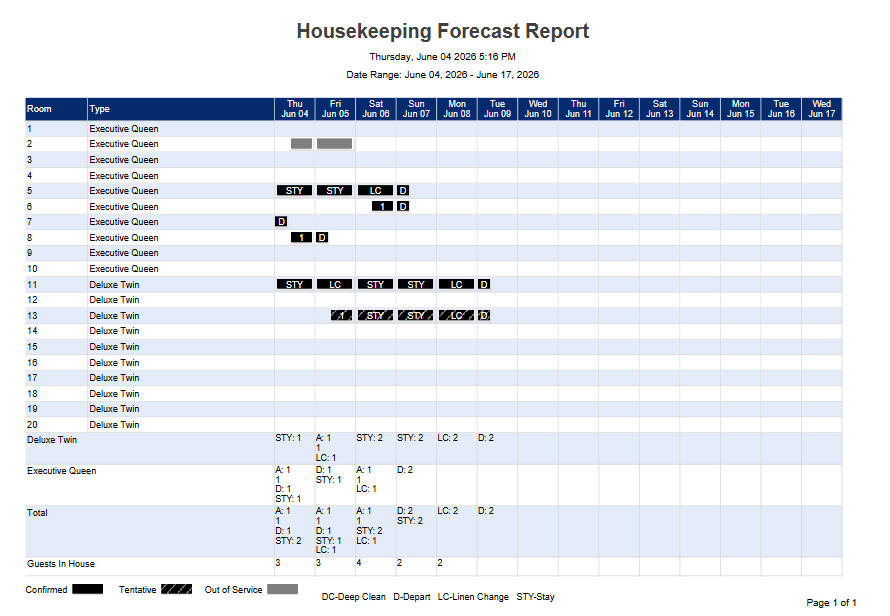
This report is also available in CSV format if you wish to further manually manipulate your Housekeeping Forecast Report to your preferences.
How to Read the Housekeeping Forecast Report
You will notice a legend guide at the bottom of the Housekeeping Forecast Report and a Total row just above it. The Total row collects all the clean types of every room type and adds them all up. You would be forecasting your Housekeeping based on the Total row most of the time.
Total Row (Refer to the Total Row belonging to the Second Column for Friday June 05)
A: 1 with a 1 underneath - This indicates a booking Arriving. A:1 refers to 1 room arriving on that day. The 1 just underneath A:1 refers to how many guests in total are arriving.
You will notice a legend guide at the bottom of the Housekeeping Forecast Report and a Total row just above it. The Total row collects all the clean types of every room type and adds them all up. You would be forecasting your Housekeeping based on the Total row most of the time.
Total Row (Refer to the Total Row belonging to the Second Column for Friday June 05)
A: 1 with a 1 underneath - This indicates a booking Arriving. A:1 refers to 1 room arriving on that day. The 1 just underneath A:1 refers to how many guests in total are arriving.
D: 1 - Indicates how many rooms are Departing or have the Depart clean type automatically set by the system.
STY: 1 - Indicates how many rooms have a Stay clean type i.e. they are staying their second night and departing the day after.
LC: 1 - How many rooms have the Linen Change clean type assigned. Linen Change is optional and only reports automatically if it is triggered by inputting a number into "Occurs every" field next to Linen Change clean time. Elsewise, it can be used on a manual basis.
Please note that without all of your report codes inputted for every relevant clean type & room type, the Housekeeping Forecast Report does not function as intended.
1D: Precedence Field
The Precedence field determines which automated clean types will take precedence when their automated settings clash on the same day.
It is only relevant when you are making use of two or more of the following clean types in an automated fashion:
1. Linen Change - automation enabled if you input Days value into "Occurs every" field next to Linen Change clean time.
2. Other cleaning - automation enabled if you select at least 1 day of the week in the "Select Other Cleaning Days" field.
3. Additional Clean Type - automation enabled if you input a Days value into the two fields: "Occurs every x days after" and "Occurs every y days"
4. 1 Automated Additional Clean Type combined with another Automated Additional Clean Type
Precendence can range from 1 - 10 (with 1 being first, 10 being last), or the option "None" can be selected.
If you are not using any automated clean types, you may leave Precendence on "None" accordingly.
If you ARE using two or more automated clean types, please change Precendence to a numbered option accordingly for those clean types.
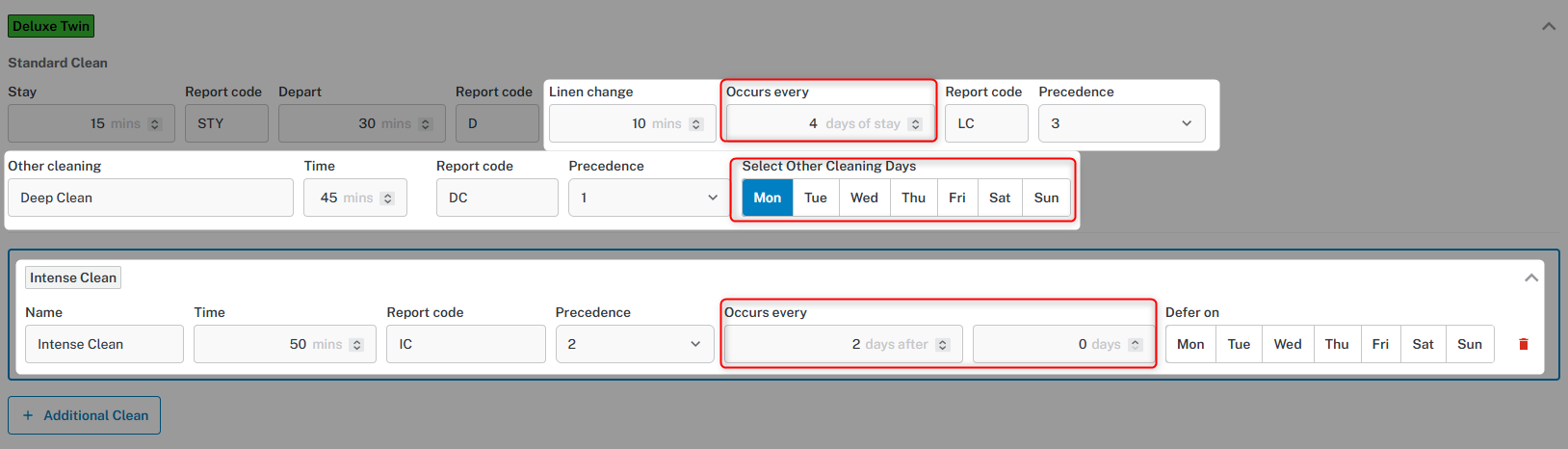
Precedence is directly involved with the "Occurs every" field that enables automation for that clean type (the exact fields that enable automation are shown below in red rectangle).
Below example is making use of automated Linen Change, Other Cleaning, and Additional Clean (Intense Clean).
Below example is making use of automated Linen Change, Other Cleaning, and Additional Clean (Intense Clean).
Linen Change - Preference 3 - Occurs every 4 day of stay
Other Cleaning - Preference 1 - Occurs every Monday
Other Cleaning - Preference 1 - Occurs every Monday
Intense Clean - Preference 2 - Occurs every 2 days of stay (after 0 days of stay i.e. applies immediately on the 2nd night after Check In)
Logically, this actually means that Linen Change will never trigger automatically because it is overwritten by Intense Clean every time.
Other Cleaning - Preference 1 - Will be the automatically set clean type when it is a Monday and it clashes with Preference 2 - Intense Clean and/or Preference 3 - Linen Change.
Logically, this actually means that Linen Change will never trigger automatically because it is overwritten by Intense Clean every time.
Other Cleaning - Preference 1 - Will be the automatically set clean type when it is a Monday and it clashes with Preference 2 - Intense Clean and/or Preference 3 - Linen Change.
Intense Clean - Preference 2 - This clean type will happen on every 2nd night of stay and effectively overwrite Preference 3 - Linen Change every time.
Linen Change - Preference 3 - This clean type will never automatically be assigned to any room because it is always overwritten by Preference 2 - Intense Clean.
SECTION 2 - Housekeepers Tab - Adding & Managing your List of Housekeepers
The Housekeepers tab in Management > Setup > Housekeeping > Housekeepers tab allows you to add, delete, and edit the details of your list of housekeepers.
Once a housekeeper has been created, you can assign them to specific rooms to clean on the Housekeeping Schedule.
Once a housekeeper has been created, you can assign them to specific rooms to clean on the Housekeeping Schedule.
Assigning a Housekeeper to a Housekeeping Schedule also allows that housekeeper access to our Housekeeping Mobile App available at https://hka.guestpoint.com/
Please note the Housekeeping Mobile App is not an iOS or Android app but a web browser URL.
You may find more information about the Housekeeping Mobile App by proceeding to the help article here: Housekeeping Mobile App
2A: Adding a Housekeeper
Within the Housekeepers tab, click into the + New Housekeeper button on the right-hand side.
You will see below New Housekeeper set up screen. Only one field is required (Last Name), but we recommend you add in their Contact details as needed for your reference or Human Resources requirements. Input a 4 digit PIN number if you wish for that Housekeeper to be able to use the Housekeeping Mobile App.
Proceed to Add Housekeeper button when done and be VERY sure to straight-away click on "Save Changes" button in the Housekeepers tab when you are done to save your Housekeeper (you may lose this Housekeeper if you switch to another section of GuestPoint withouting Saving Changes).
Proceed to Add Housekeeper button when done and be VERY sure to straight-away click on "Save Changes" button in the Housekeepers tab when you are done to save your Housekeeper (you may lose this Housekeeper if you switch to another section of GuestPoint withouting Saving Changes).
2B: Editing & Deleting a Housekeeper
You can expand a Housekeeper by clicking into the Housekeeping or using the "Expand All" checkbox.
You can edit the same information you saw in the Housekeeper set up screen & proceed to "Save Changes", or you can also delete the Housekeeper itself with red Delete button.
If you do not wish to delete the Housekeeper and want to temporarily hide them from the list of Housekeepers available for a schedule, you can click on the green "Active" slider to temporarily make them Inactive. For example, this is useful for when the Housekeeper goes on vacation/leave.
If you delete a Housekeeper, their historical data will also be lost and they will be removed from all assigned schedules (past, current, or future).
SECTION 3 - General Areas Tab - Adding Common/General Areas to your Housekeeping Schedule
You can add your General Areas that need to be cleaned as part of your daily, weekly, monthly, or yearly cleaning schedule in the General Areas tab.
Proceed to the + New General Area button on the right-hand side of the General Areas tab to see below New General Area set up screen.
Input the following fields for your General Area set up:
- Name of the General Area
- The type of cleaning required & the estimated time required
- The Start Date this General Area starts to be cleaned (use Today's Date unless required)
- Set the Frequency that this General Area is to be cleaned whether it is daily, weekly, monthly, or yearly.
- Once done, click the "Add General Area" button
Your newly created General Area will now start to automatically appear as a "room" needing to be cleaned on your Housekeeping Schedule whenever it satisfies the cleaning frequency settings you have allocated for it. It will be found at the very bottom of the Housekeeping Schedule list after all of your GuestPoint rooms.
You can also choose to clean the General Area even when it does not automatically show on the Housekeeping Schedule by clicking on the "Show All Rooms" button in the schedule.
This is useful when you want to clean the General Area earlier than the frequency settings you have allocated for it.