3. TWO MODES OF ROLL OVERS - Manual Roll Overs vs Automated Roll Over
3. TWO MODES OF ROLL OVERS - Manual Roll Overs vs Automated Roll Over
Quick Answer: There are two modes of roll overs on GuestPoint. You can action it daily manually or set it to an automated time of choosing each day.
Roll over can be done manually each day or set to an automated time for the system to action it each day.
There are pros and cons to both methods.
In general if you need to manually reconcile your Cash & EFTPOS takings and your received Bank Transfers on a daily basis, we recommend doing your roll overs manually.
If you are part of a team where another department or accounting entity takes care of the Reconciliation side of GuestPoint, you should set it to Automated Roll Over instead.
HOW TO ENABLE MANUAL ROLL OVER OR AUTOMATED ROLL OVER
The mode of Roll Over is saved based on the last actioned roll over type (manual or automated).
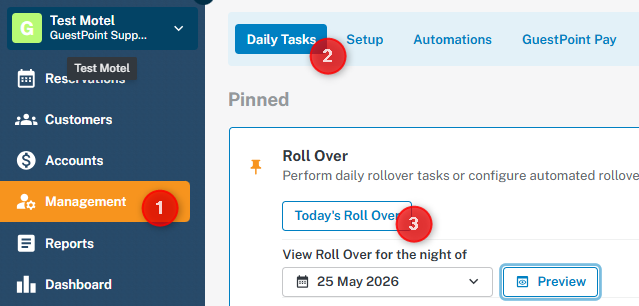
Proceed to Management > Daily Tasks tab > Roll Over and open the Roll Over screen via clicking Today's Roll Over.
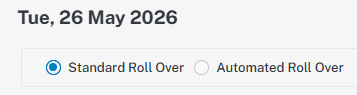
On the top side of the Roll Over screen, you will see two Roll Over views and checkboxes:
MANUAL ROLL OVER
The checkbox will be set to Standard Roll Over.
Proceed to Management > Daily Tasks tab > Roll Over and open the Roll Over screen via clicking Today's Roll Over.
On the top side of the Roll Over screen, you will see two Roll Over views and checkboxes:
MANUAL ROLL OVER
The checkbox will be set to Standard Roll Over.
Manual Roll Over mode will naturally save as the default setting as you manually action your roll overs daily.
AUTOMATED ROLL OVER
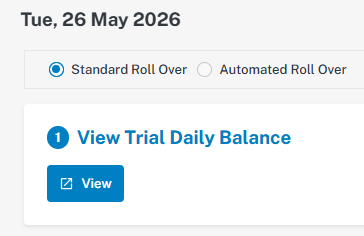
If below is the first screen you see when you open the Roll Over, you are already on an Automated Roll Over setting.
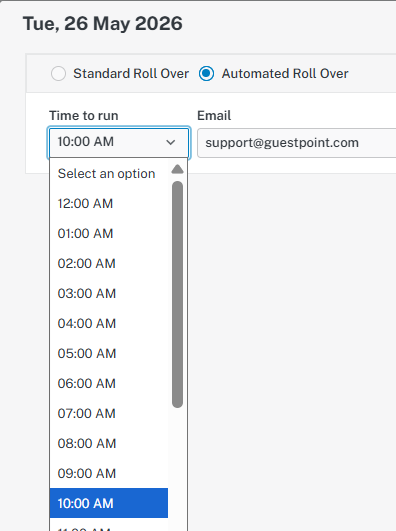
If above is not the first screen you see and you see the Standard Roll Over screen instead, you need to enable the Automated Roll Over setting.
AUTOMATED ROLL OVER
If below is the first screen you see when you open the Roll Over, you are already on an Automated Roll Over setting.
If above is not the first screen you see and you see the Standard Roll Over screen instead, you need to enable the Automated Roll Over setting.
ENABLING AUTOMATED ROLL OVER
1. Change the tickbox to Automated Roll Over from Standard Roll Over
2. Select a time to run the automated roll over daily
3. Enter an email address to receive a PDF copy of the automated roll over each time it is done.
4. Proceed to "Save Settings" in bottom right corner.
5. Verify that it has saved by proceeding to "Today's Roll Over" again.
6. The first screen you should see is the Automated Roll Over screen with the Automated Roll Over checkbox ticked. This is a sign Automated Roll Over is enabled.
WHEN DOES THE NEXT AUTOMATED ROLL OVER RUN?
Automated Rollover will only run once a day at your set time.
6. The first screen you should see is the Automated Roll Over screen with the Automated Roll Over checkbox ticked. This is a sign Automated Roll Over is enabled.
WHEN DOES THE NEXT AUTOMATED ROLL OVER RUN?
Automated Rollover will only run once a day at your set time.
Most importantly, it will not run if you have already done a manual roll over for the day.
If this is the case, the next automated roll over will happen the following day at your designated time.
Related Articles
INTRODUCTION - Actioning a Roll Over
What is a Roll Over? Quick Answer: Go to Daily Tasks → Today's Roll Over. Must be run every day, ideally around 10am. The Roll Over is a daily process that posts room charges, sends automated guest communications, and generates your Daily Balance ...5. What to do if you miss a Daily Roll Over
What a Missed Roll Over means for you Quick Answer: A missed roll over means the next roll over you do is a collection of revenue & payments done on GuestPoint since the last rollover was done. If you manually reconcile daily, this could mean you ...Automated Emails & Text Messages
Automated Emails & Text Messages Quick Answer: Configure automated guest emails and SMS via Setup Tab → Automated Emails & Text Messages. This feature allows you to configure pre-stay emails and text messages for guests, as well as post-stay thank ...2. How the Roll Over Works
How the Roll Over Works Quick Answer: The Roll Over posts nightly charges and automated actions within the system but it is also generates a financial Daily Balance End-of-Day report collecting all the revenue and payments entered onto the system ...Reckon
Reckon Quick Answer: This article covers reckon in GuestPoint. Integrating Your GuestPoint with Reckon One Step 1: Access Accounting Interfaces in GuestPoint Log in to your GuestPoint software. Navigate to Management > Setup > Accounting Interfaces. ...